Course workspaces and offline documents
Organise documents and folders by course, keep locally stored learning material available offline, and navigate within a workspace without switching between unrelated applications.
OnStudy is a cross-platform, local-first learning workspace built with C# and .NET MAUI. It organises courses into workspaces, keeps documents available for reading and revision, and brings quizzes, flashcards, notes and exam planning together. Document-based AI explanations and optional Google Drive access complement local storage rather than replacing it.
Capabilities evidenced by project documentation and source structure; some behaviours require platform configuration.
Organise documents and folders by course, keep locally stored learning material available offline, and navigate within a workspace without switching between unrelated applications.
Open PDFs and supported documents inside the study environment. Office previews use the renderer available on the platform; the original file stays organised in its course folder.
Select relevant material and request explanations from a configured AI provider. The application separates the source material from generated answers, which should be checked against the original document.
Create questions manually or derive them from supported content. Record attempts and compare results over time to identify topics that need more revision.
Group flashcards into folders, reveal answers in focused study sessions and revisit cards according to their review status. The interface adapts between desktop and phone layouts.
Keep notes and exam planning alongside subject content. Optional Google Drive Picker access is for explicitly selected files and complements the local-first workspace.
When Google Drive is connected, the Picker lets users select authorized shared files deliberately. Those cloud resources complement the local document library; access is scoped to the selected items and may require connectivity.
Technical architecture drawn from the repository and supplied documentation.
OnStudy hosts MAUI XAML pages, navigation and view models; dependency injection is composed by MauiProgram.
Application services coordinate learning workflows and define interfaces for repositories and providers.
Local infrastructure persists per-account files and JSON; document infrastructure imports and reads source material.
Cloud and AI adapters keep optional provider integrations separate from the core learning experience.
The workflow starts with the corresponding user choice or data entry. Subject-based workspaces and a local document library with offline access. This capability is documented in the project material; the detail page distinguishes its intended user experience from the supporting implementation and any configuration needed to run it.
The relevant component must interpret the input, apply the project rules and coordinate any necessary storage, network access or computation. The documentation below identifies where that responsibility appears in the source when it is evidenced.
The resulting screen, calculation or stored record should reflect the processed state. Document-based AI explanations with configurable providers. This capability is documented in the project material; the detail page distinguishes its intended user experience from the supporting implementation and any configuration needed to run it.
This page describes the documented behaviour, not an independently verified live deployment. Runtime configuration, permissions, test data or connected services may still be required.
How the major parts fit together and what each part contributes.
Users can organise learning resources by subject, workspace and folder. Local repositories preserve study material and make the application useful when network services are unavailable.
The reading layer supports PDFs and other documented formats with platform-specific viewer behaviour. Office and presentation previews depend on the renderer or integration available on the active device.
Questions can be created manually or derived from documents. Quiz sessions and flashcard review are part of the study workflow, supported by progress and scheduling features.
Cards can be grouped, imported and studied in focused sessions. The interface adapts between compact and larger presentation modes, including touch-oriented interaction on phones.
AI providers can produce explanations or study materials informed by selected documents. Provider credentials, token usage and network availability are separate from offline document access.
The cloud workflow uses Google account authorisation and the documented Google Picker approach for supported user selections. Access is opt-in and should be described separately from local file storage.
Notes, exam planning and study statistics connect reading with revision. The goal is a single, subject-based workspace instead of multiple disconnected utilities.
MAUI pages and XAML provide the user interface. Dependency injection registers application services, local repositories and integrations; platform-specific readers are implemented behind the relevant interfaces.
The current OnStudy README describes a larger learning workflow than a document viewer alone. These notes connect the documented user-facing tools to the local-first architecture.
A built-in creator supports six document formats. It belongs next to imported course material so users can switch from reading to producing notes and study documents.
Quizzes can be written manually or derived from source documents; flashcards support Again, Hard, Good and Easy review choices. Quiz attempts and review activity contribute to progress tracking.
Drive is optional: locally stored workspaces remain usable without an account. Where supported, selected workspaces can be synchronized, shared, and restored; shared-resource discovery is read-only.
The README documents eleven themes, study settings and platform-aware layouts. Personalisation is independent of the content model.
Documentation: GitHub repository / project specification. The content describes documented behaviour or plans; deployment readiness is not inferred.
Choose a course workspace, create folders for materials and import files. The screenshot demonstrates how the study root and course folders remain in one navigable location.
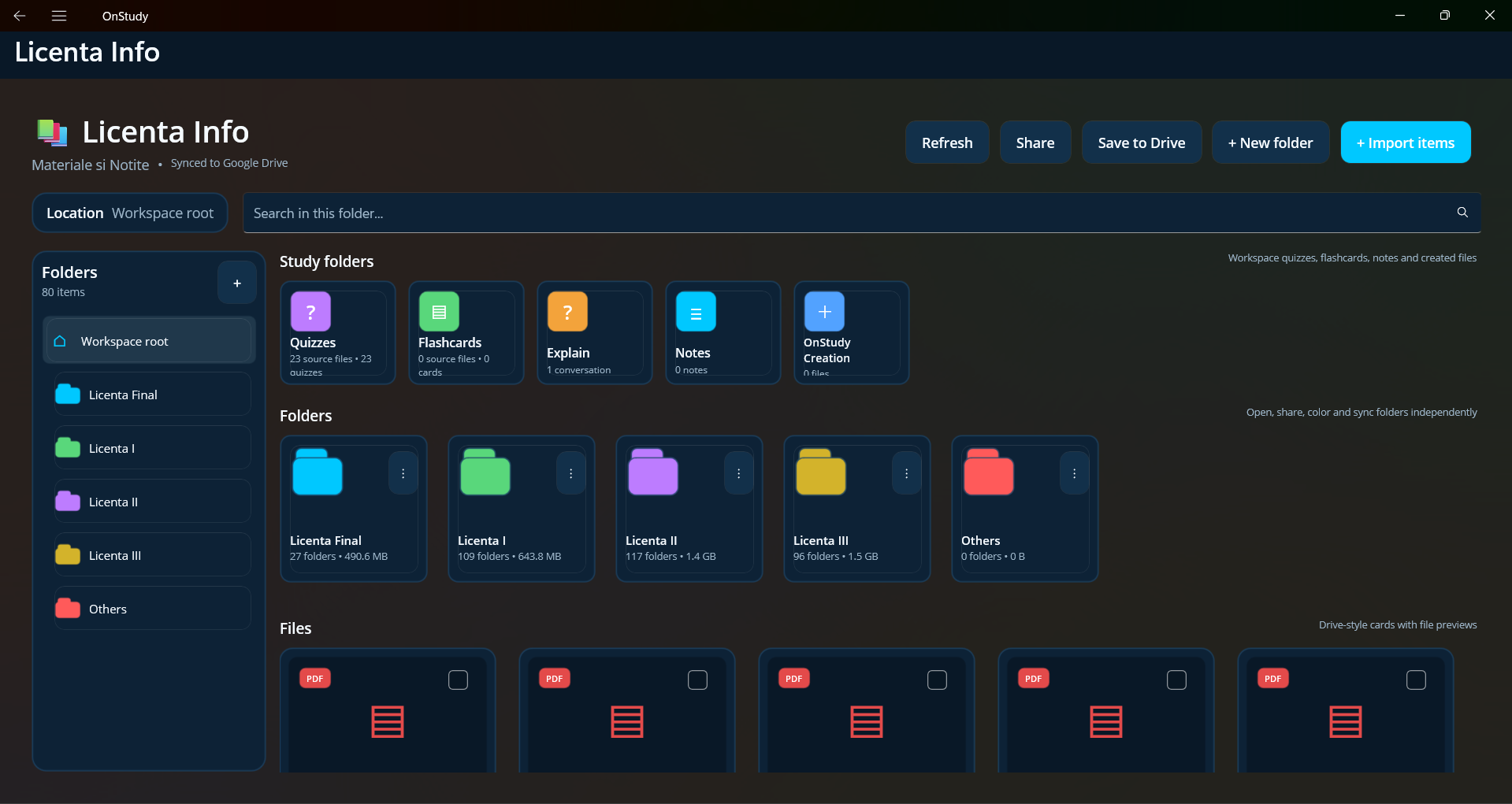
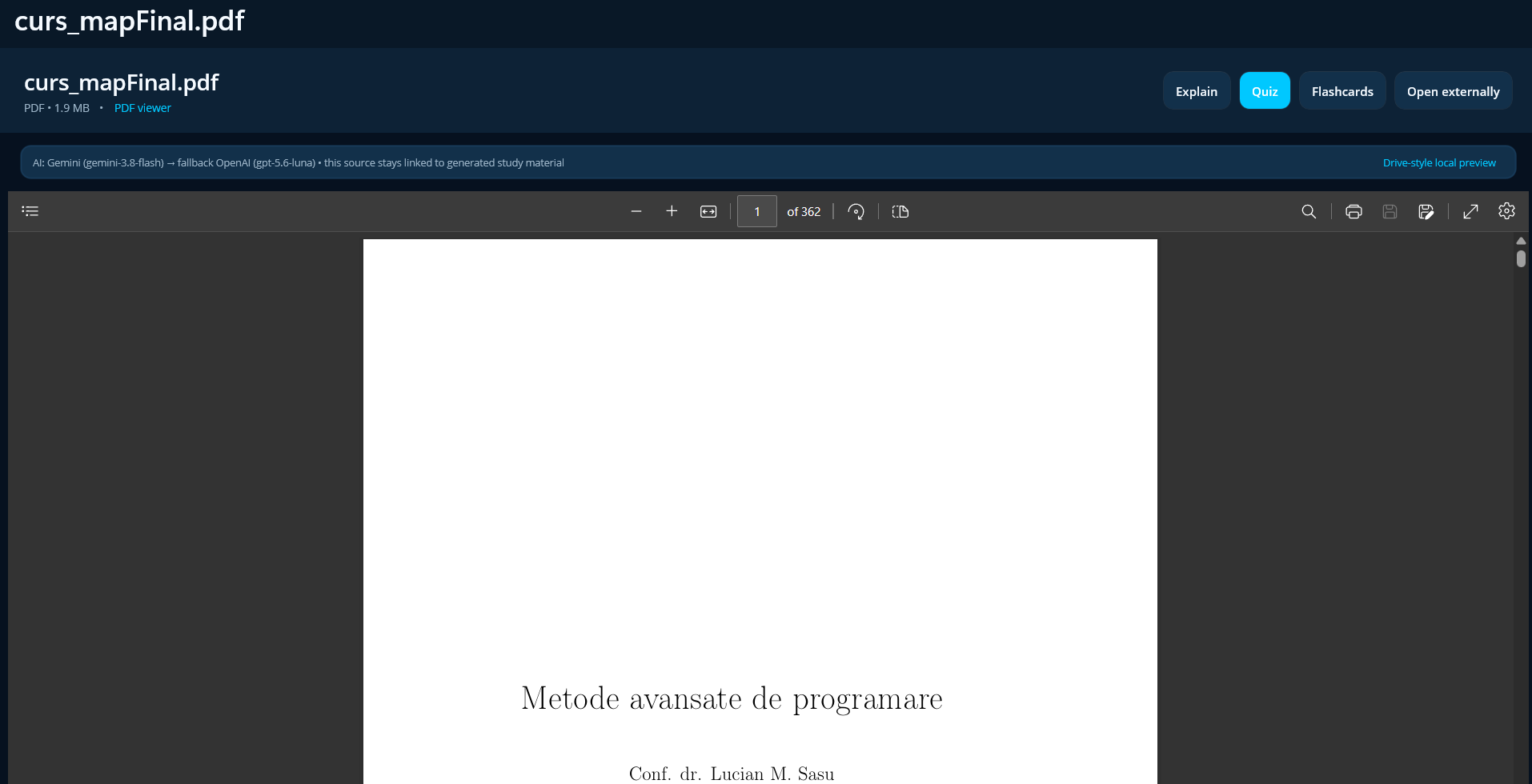
Open course materials in a viewer appropriate to the format. Preview behaviour depends on the platform and available renderer; original documents remain organised in the workspace.
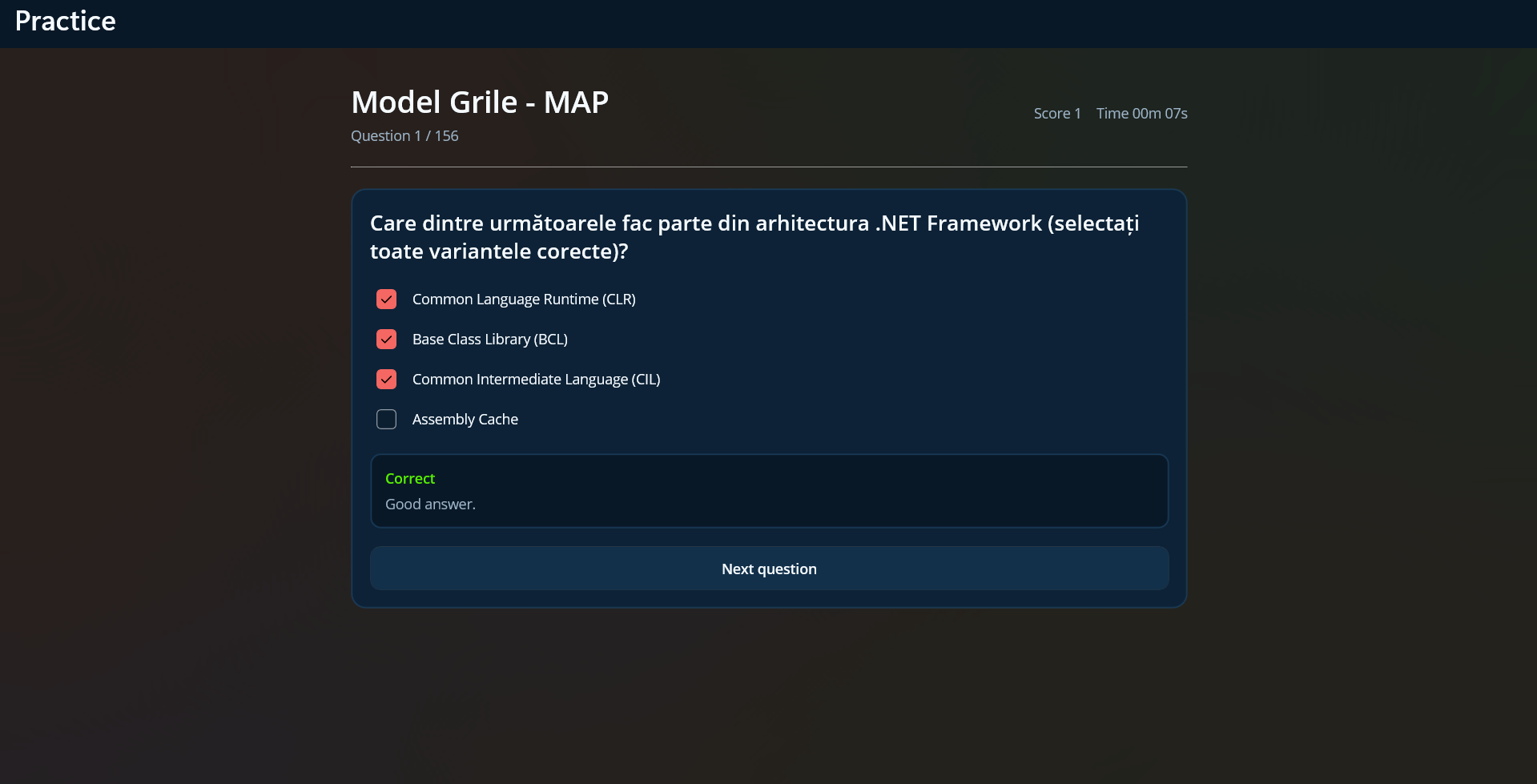
Create questions manually or start from selected document content. Review answers within a session rather than keeping quizzes separate from the course they belong to.
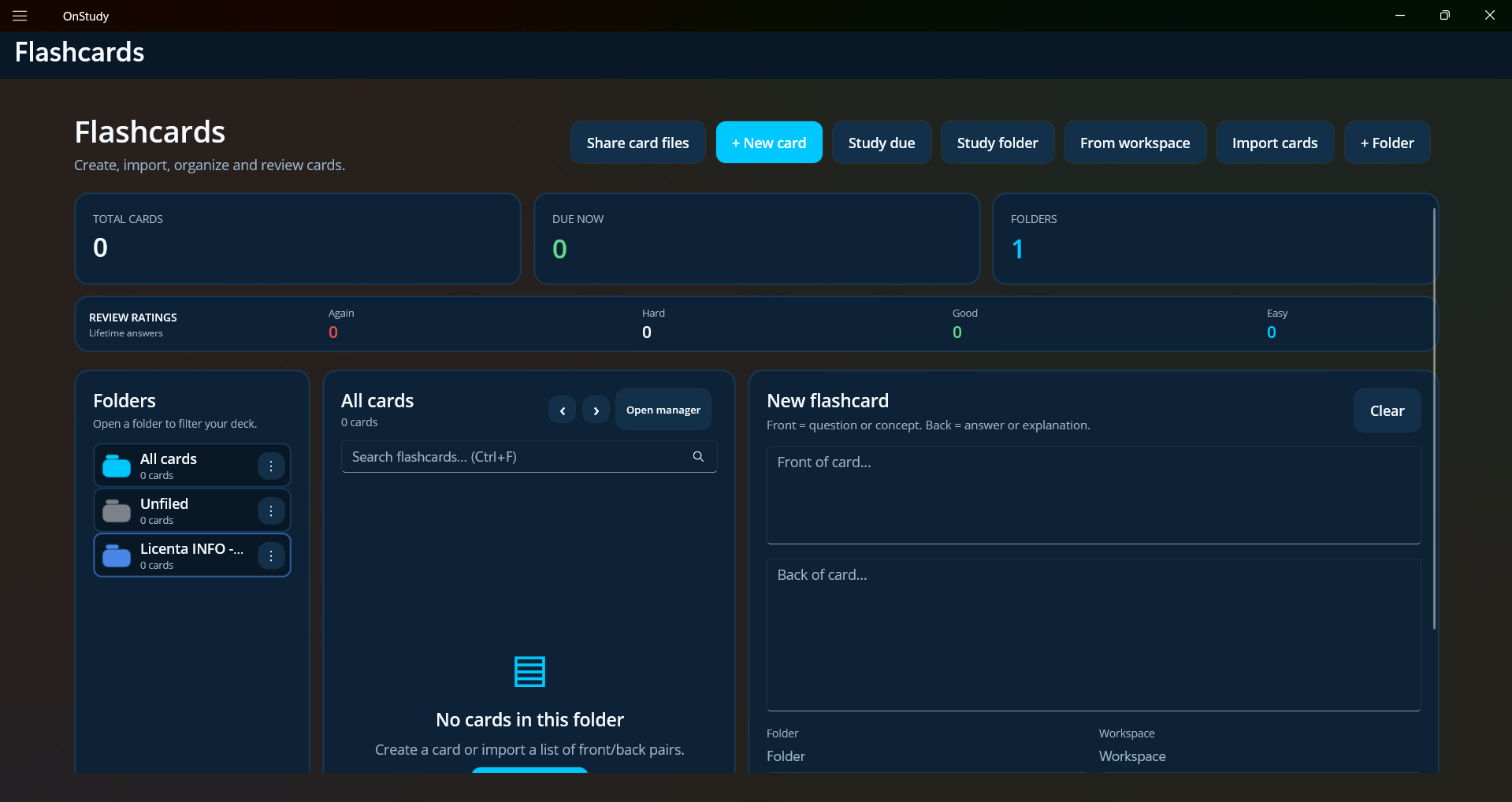
Group cards by subject and practise in repeatable sessions. Cards support focused study, and the mobile presentation adapts to smaller touch screens.
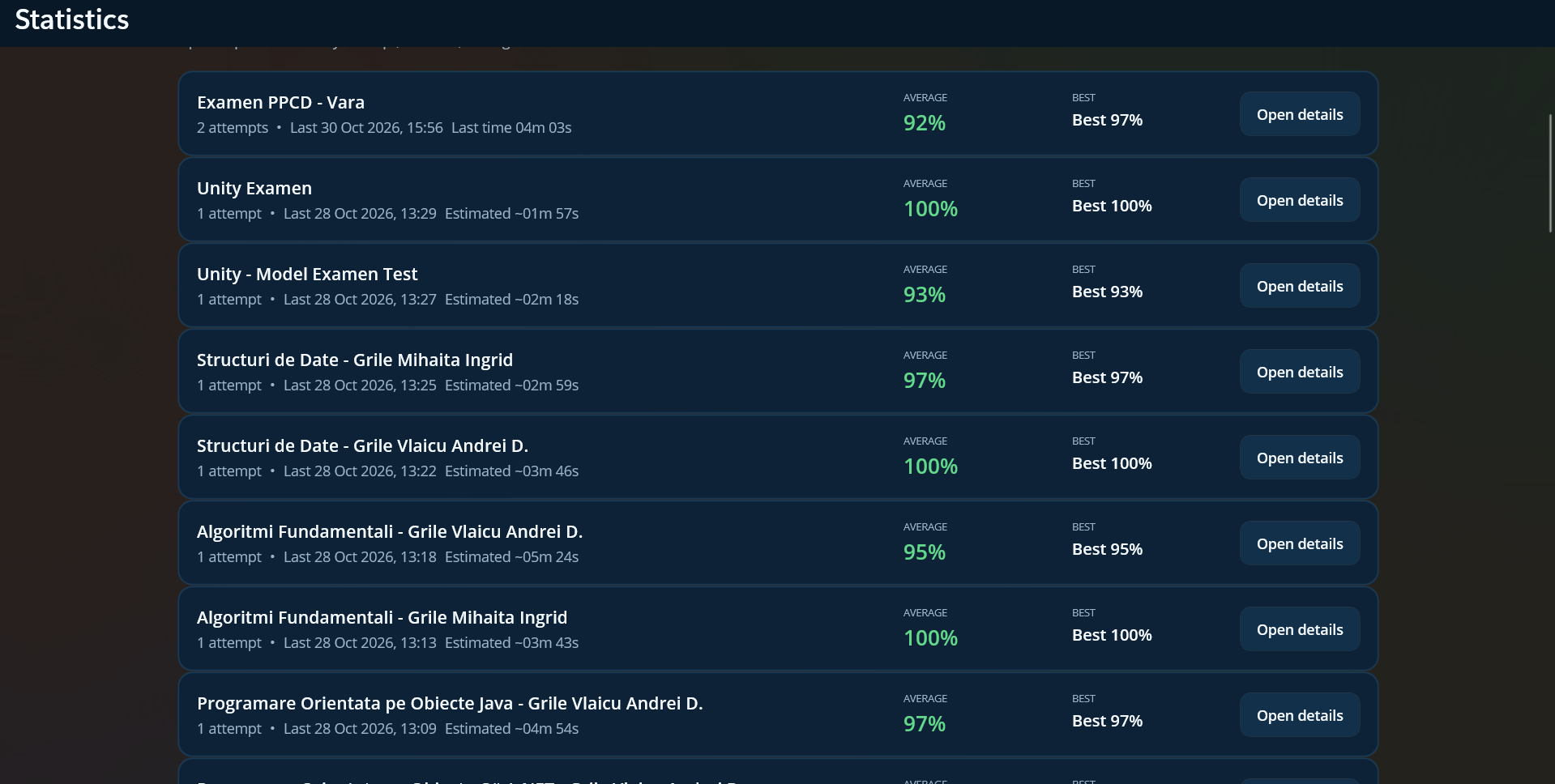
Inspect attempts, average results and best scores by quiz. This feedback helps identify which topics need another revision session.
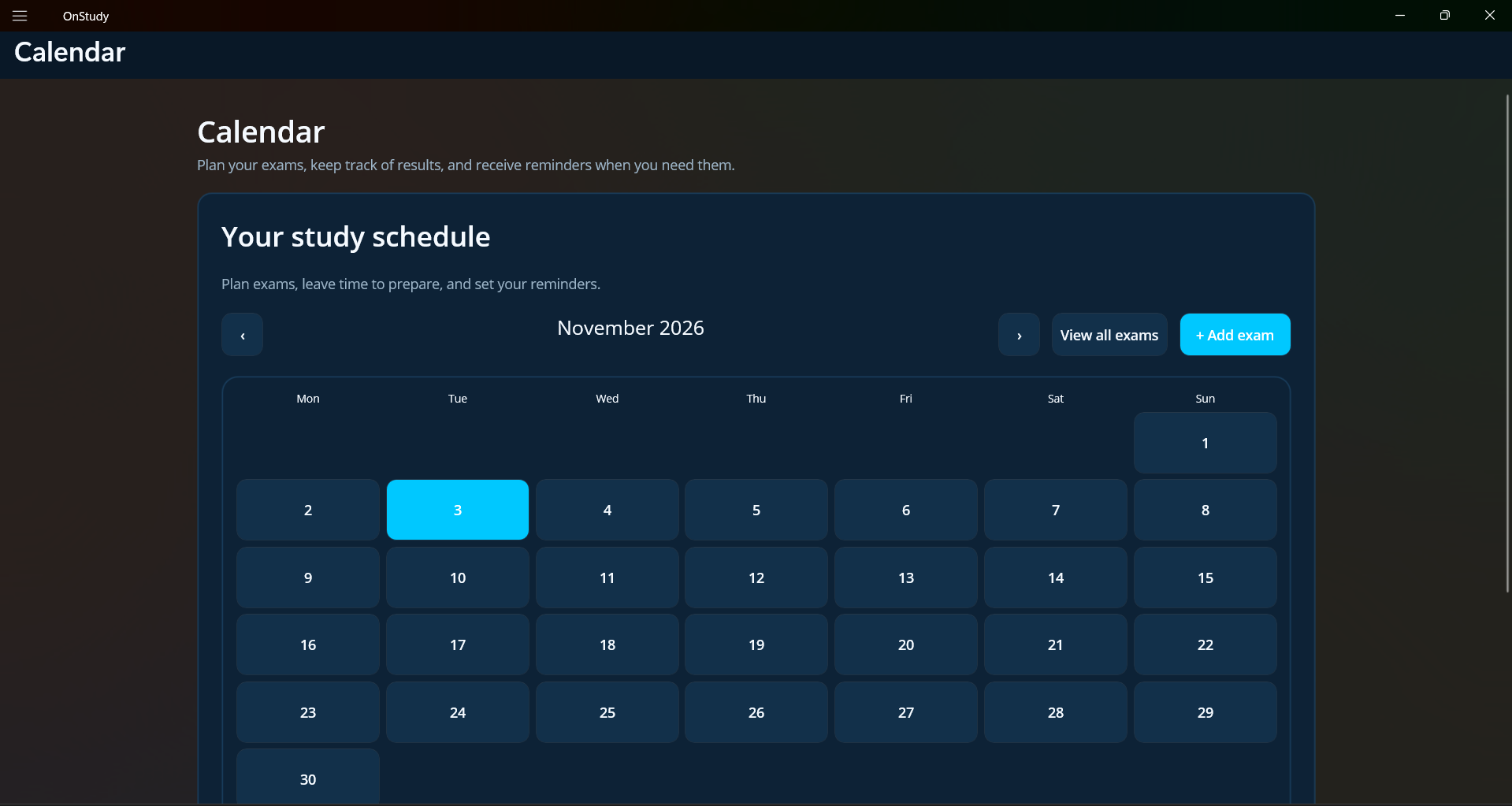
Keep exams and learning goals together with notes and course content, so planning can follow the same subject organisation.
Optional provider integrations complement the offline-first model; Google Picker controls authorized shared Drive selection and AI assistance depends on provider access.
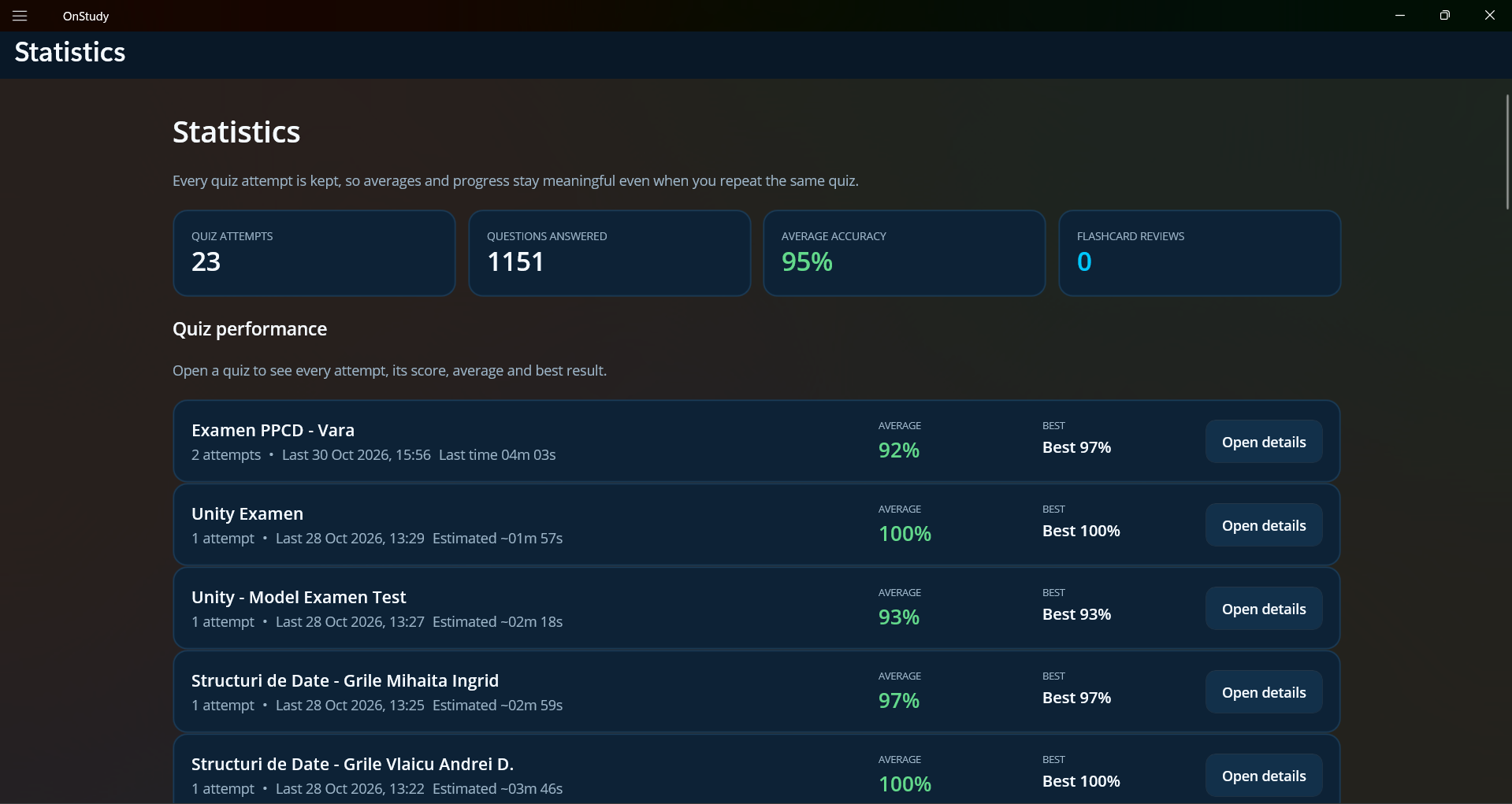
The screenshots above show the documented application workflows. Local workspaces, revision tools and optional online integrations are presented together without replacing the original course files.
Account-aware persistence registered with MAUI dependency injection
var dataDirectory = Path.Combine(FileSystem.AppDataDirectory, "onstudy");

builder.Services.AddSingleton(_ => new AccountStorageService(dataDirectory));
builder.Services.AddSingleton<IWorkspaceRepository>(sp =>
{
    var storage = sp.GetRequiredService<AccountStorageService>();
    return new FileWorkspaceRepository(() => storage.GetDataFilePath("workspaces.json"));
});The review queue is filtered against the current UTC timestamp; overdue cards are sorted ahead of newly created items.
public async Task<IReadOnlyList<Flashcard>> GetDueAsync(Guid? folderId = null, CancellationToken cancellationToken = default) =>
    (await repository.GetAllAsync(cancellationToken))
    .Where(card => (folderId is null || card.FolderId == folderId) &&
                   (card.NextReviewAt is null || card.NextReviewAt <= DateTime.UtcNow))
    .OrderBy(card => card.NextReviewAt ?? DateTime.MinValue)
    .ThenBy(card => card.CreatedAt)
.ToList();Versioned JSON records preserve quiz completion history and make progress snapshots portable.
public static string SerializeQuizAttempts(IEnumerable<QuizAttempt> attempts)
{
    var document = new QuizProgressDocument
    {
        Version = 1,
        UpdatedAt = DateTime.UtcNow,
        Attempts = attempts.OrderBy(x => x.CompletedAt).ToList()
    };
    return JsonSerializer.Serialize(document, JsonOptions);
}
Code samples are excerpts or documented illustrations; surrounding project files, configuration and dependencies may be required to compile or run them.
Screenshots from supplied documentation and repository media. Missing visuals remain placeholders rather than invented screens.
Core technologies and integrations used or planned for this project.
File types identified: 184 .cs, 28 .xaml, 10 .csproj, 3 .html
Installers appear only after a verified release is added to the public download directory. Unavailable builds are marked clearly.